whats new wordpress 6.8 Hsq8cu
WordPress News

WordPress 6.8: Feature Highlights and Improvements

WordPress version 6.8 launched on April 15, 2025, bringing new features and improvements to enhance your WordPress site-building experience. This update focuses on streamlining workflows, improving design capabilities, and making content creation more intuitive

All WordPress.com sites are already running on WordPress 6.8 or will be shortly—we automatically update your WordPress version for you, so you don’t need to worry about doing it yourself to get access to these new features.

Let’s dive into the most noteworthy enhancements you can expect in this major release.

Priority features in WordPress 6.8

WordPress 6.8 is all about refinement: improving existing tools rather than introducing new ones, with a strong emphasis on enhancing site design workflows.

Style Book improvements

The Style Book is a powerful feature in the Site Editor. It provides a comprehensive overview of your site’s colors, typography, and block styles in a single organized location.

In WordPress 6.8, the Style Book has a new, structured layout and clearer labels, making it even easier to edit colors, typography, and almost all your site styles in one place.

This release also adds a new way to access the Style Book directly from the Styles menu item in the Editor sidebar.

Expanded design tools

WordPress 6.8 continues to evolve the design experience with improved tools that give you more control over your site’s appearance without requiring coding knowledge. These enhancements make creating polished, professional designs more accessible for everyone, regardless of technical expertise.

Updated core blocks

With the focus on refinement, many core blocks have been updated to include small but powerful features. 

Query Loop block: more control over your content lists

The Query Loop block will get several new features in WordPress 6.8, including the ability to:

  • Include or exclude sticky posts from your dynamic content lists
  • Sort in different ways
  • Retrieve pages from all hierarchical levels

These features provide much finer control over your content’s appearance on archive pages or in content overviews.

The Ignore option selected in the Sticky Posts setting for the Query Loop block

Introducing the Query Total block

Content creators will appreciate the new Query Total block, which displays the number of posts found in a specific query loop. This is particularly useful for archive or search results pages, where showing “12 posts found” or similar messaging provides helpful context for your visitors. 

This addition makes your site more user-friendly by setting clear expectations about displayed content.

Cover block enhancements

WordPress 6.8 also brings some changes to the Cover block—one of WordPress’s most versatile content containers. It now includes resolution controls for images and backgrounds. 

This adds finer control over these images and allows you to create eye-catching headers and section introductions.

Details block improvements

The Details block, which creates expandable sections within your post or page content, has been enhanced to include a name attribute field. This allows groups of Details blocks to be connected and styled, making it easier to create effective FAQ sections or content that progressively reveals information to readers.

An FAQ set up with the Details block on WordPress 6.8

File block updates

This update also brought some changes to the File block, enabling users to update the filename and download button text. This allows for better customization of how files appear to your visitors.

Gallery block refinements

The Gallery block now features a new option called “Expand to click.” When enabled, users can open all images in a lightbox gallery with a single click.

Set Image blocks as featured images

A particularly useful addition to the WordPress software is the ability to set any Image block as your post’s featured image with just a few clicks. This will streamline your workflow by eliminating the need to set the same image in two places when you want to feature an image that’s already in your content.

Navigation block upgrades

The Navigation block continues to evolve with WordPress 6.8, offering better management of complex menus. Menu names are now displayed in the List View for easier orientation, and a Clear option was added to the color picker for faster design implementation. Under the hood, improvements to the Navigation block’s code structure make it more efficient when rendering menus.

Social Icons block upgrades

The Social Icons block now supports Discord, provides an easier method to clear color options, and streamlines adding social links. These refinements make it easier to connect your visitors to your social media presence while maintaining your site’s design aesthetic.

Editor improvements

The Site Editor also includes new features that give you more control over your content.

Reset button: start fresh with one click

WordPress 6.8 introduces a convenient reset button across various design controls. Thanks to the inline reset button added to all color controls, you can now reset colors for blocks and global styles with a single click. This same reset functionality extends to the Shadow panel and Duotone settings.

Instead of manually removing settings one at a time, you can now quickly reset elements with a single action. This small but significant improvement will save designers considerable time when experimenting with different looks for their sites.

Cut function in block options

The block options menu now includes a Cut action alongside the existing Copy option in the dropdown menu. This addition completes the standard set of content manipulation tools, making it easier to move blocks and sections from one location to another within your content.

An orange arrow highlighting the Cut option in the WordPress block options menu

New commands in the Command Palette

WordPress 6.8 enhances the Command Palette with two powerful new commands that streamline your workflow:

  • The Add New Page command lets you create a new page from anywhere in the Site Editor, significantly speeding up the content creation process. You won’t have to navigate through multiple screens to start working on new content anymore.
  • The Open Site Editor command offers one-click navigation to the Site Editor from Page or Post Editor screens accessed via the WP Admin menu. This makes switching between editing contexts much faster and more intuitive.

These commands can be accessed by pressing cmd+K on Mac or ctrl+K on Windows; this shortcut will open the Command Palette from any editor screen that supports the palette.

Starter content: jumpstart your pages

With WordPress 6.8, a new pattern category called Starter Content makes it easier than ever to begin creating with professional layouts. This category lists page layouts that are otherwise available via the New Page modal.

If you’ve disabled the starter content pop-up when creating new pages, this category ensures those layouts remain accessible when needed. The Inserter now always shows all available patterns in a list view, making it easier to browse through your options.

What will you create with WordPress 6.8?

WordPress 6.8 represents another significant step forward in making website creation and management more accessible and efficient. With its focus on improved design tools, enhanced block functionality, and streamlined editing processes, this update offers something valuable for content creators at every skill level.

And if you’re looking for rock-solid WordPress hosting to try out some of these new 6.8 features, check out WordPress.com. We run the same WordPress software trusted by over 40% of the web—we just manage the hosting, security, performance, and maintenance so you don’t have to.

 [#item_full_content]

WordPress 6.8: Feature Highlights and Improvements Read Post »

WordPress News

There’s AI Inside Windows Paint and Notepad Now. Here’s How to Use It


​AI tools have arrived in two of the most basic and long-serving Windows utilities. Here’s what they do and how you can turn them off if you prefer. 

Read More

 Gear, Gear / How To and Advice, Gear / Products / Apps, Gear / Products, Helping Hand Gear, Gear / How To and Advice, Gear / Products / Apps, Gear / Products, Helping Hand

There’s AI Inside Windows Paint and Notepad Now. Here’s How to Use It Read Post »

WordPress News

Black Basta: The Fallen Ransomware Gang That Lives On


​After a series of setbacks, the notorious Black Basta ransomware gang went underground. Researchers are bracing for its probable return in a new form. 

Read More

 Security, Security / Cyberattacks and Hacks, Security / Security News, Bad Company Security, Security / Cyberattacks and Hacks, Security / Security News, Bad Company

Black Basta: The Fallen Ransomware Gang That Lives On Read Post »

WordPress News

TraderTraitor: The Kings of the Crypto Heist


​Allegedly responsible for the theft of $1.5 billion in cryptocurrency from a single exchange, North Korea’s TraderTraitor is one of the most sophisticated cybercrime groups in the world. 

Read More

 Security, Security / Cyberattacks and Hacks, Security / Privacy, Security / Security News, Bad Company Security, Security / Cyberattacks and Hacks, Security / Privacy, Security / Security News, Bad Company

TraderTraitor: The Kings of the Crypto Heist Read Post »

WordPress News

CyberAv3ngers: The Iranian Saboteurs Hacking Water and Gas Systems Worldwide


​Despite their hacktivist front, CyberAv3ngers is a rare state-sponsored hacker group bent on putting industrial infrastructure at risk—and has already caused global disruption. 

Read More

 Security, Security / Cyberattacks and Hacks, Security / National Security, Security / Security News, Bad Company Security, Security / Cyberattacks and Hacks, Security / National Security, Security / Security News, Bad Company

CyberAv3ngers: The Iranian Saboteurs Hacking Water and Gas Systems Worldwide Read Post »

WordPress News

Gamaredon: The Turncoat Spies Relentlessly Hacking Ukraine


​For the past decade, this group of FSB hackers—including “traitor” Ukrainian intelligence officers—has used a grinding barrage of intrusion campaigns to make life hell for their former countrymen and cybersecurity defenders. 

Read More

 Security, Security / Cyberattacks and Hacks, Security / National Security, Security / Security News, Bad Company Security, Security / Cyberattacks and Hacks, Security / National Security, Security / Security News, Bad Company

Gamaredon: The Turncoat Spies Relentlessly Hacking Ukraine Read Post »

WordPress News

Brass Typhoon: The Chinese Hacking Group Lurking in the Shadows


​Though less well-known than groups like Volt Typhoon and Salt Typhoon, Brass Typhoon, or APT 41, is an infamous, longtime espionage actor that foreshadowed recent telecom hacks. 

Read More

 Security, Security / Cyberattacks and Hacks, Security / National Security, Security / Security News, Bad Company Security, Security / Cyberattacks and Hacks, Security / National Security, Security / Security News, Bad Company

Brass Typhoon: The Chinese Hacking Group Lurking in the Shadows Read Post »

WordPress News

Homeland Security Email Tells a US Citizen to ‘Immediately’ Self-Deport


​An email sent by the Department of Homeland Security instructs people in the US on a temporary legal status to leave the country. But who the email actually applies to—and who actually received it—is far from clear. 

Read More

 Security, Security / Security News, Politics, Inbox Outrage Security, Security / Security News, Politics, Inbox Outrage

Homeland Security Email Tells a US Citizen to ‘Immediately’ Self-Deport Read Post »

types of web hosting managed unmanaged dedicated vps cloud shared b2wxmN
WordPress News

Types of Web Hosting (And How to Choose the Best One for You)

As you start building a website, you’ll encounter the words “web hosting” frequently. Web hosting is a necessary building block for every website—it’s where your website “lives”—but there are many different providers and hosting options to choose from. 

In this post, we’ll address two critical elements you should consider when choosing your web hosting service: hosting infrastructure and hosting management.

How to evaluate hosting solutions

When evaluating hosting plans, there are several important factors to consider. We’ll address these elements for every hosting type.  

  • Price: Personal blogs and small projects generally receive less traffic and need less customization, which can impact your hosting costs.
  • Technical expertise: Some hosting solutions require you to configure your hosting environment, while others are configured automatically by your provider. 
  • Speed: If your site loads slowly, visitors are more likely to leave. Your content’s performance in search may also be impacted, as Google uses page speed and other performance signals to help determine where your site appears in search results.
  • Reliability: When your server goes down (“downtime”), your site will become inaccessible to visitors, so reliability (“uptime”) is a key consideration when choosing a host.
  • Security: Internet security protects your data and blocks attacks from hackers or bots. Security tools can be purchased individually or bundled through your hosting provider.

Four types of hosting infrastructure: your website’s home on the web

All websites live on servers, which can be physical machines or virtual machines within larger servers. Your hosting infrastructure (or how and where your website is stored) impacts your site’s speed, reliability, and storage capacity.

a table comparing different types of web hosting—Shared, VPS, Dedicated, and Cloud—based on things like expertise, cost, and speed

Shared hosting: the apartment experience

Typically for: Small websites, portfolios, personal blogs, and other projects with lower traffic and average security needs.

A shared host has many websites on a single server, and those websites must share resources like data storage, security features, and bandwidth. Shared hosting services usually impose hard limits on these to ensure everyone’s website has what they need.

  • Price: Since you’re splitting resources with other sites, shared hosting is often the most affordable server setup.
  • Technical expertise: Shared servers are pre-configured and don’t require any technical know-how. 
  • Speed: Because you share hosting resources with other websites, your site can slow down if one of the sites on your server experiences heavy traffic. How the host configured your server can also impact your site speed.
  • Reliability: Larger websites may run up against limits, causing slowdowns or server downtime for everyone on the server.
  • Security: The host is responsible for adding security features to the server. You could be at risk if another website is not well secured.

VPS hosting: the condo

Typically for: Technical experts who want more control and mid-sized websites that are outgrowing shared hosting.

A VPS, or virtual private server, is the middle-ground between shared and dedicated servers (more on the latter next). With a VPS, your website lives on a private “virtual server” partitioned from other websites on a shared server. Virtual servers can typically be fully customized.

  • Price: VPS systems are generally more expensive than shared hosting.
  • Technical expertise: Technical expertise is required to manage a VPS. That said, some managed hosts offer pre-configured VPS hosting.
  • Speed: You can customize your virtual server to be optimized for your website. The virtual partition keeps other websites from using your allocated bandwidth. 
  • Reliability: VPS hosting offers more stability than shared hosting thanks to isolated resources. That said, since your virtual server still depends on physical hardware behind the scenes, issues with that hardware can cause downtime unless your host has strong redundancy or failover systems in place.
  • Security: Since virtual servers offer greater isolation than shared hosting, they can be configured to behave like dedicated servers. However, security features aren’t applied automatically—you’ll need to configure and maintain them on your VPS.

Dedicated hosting: the single-family home

Typically for: Large websites with high traffic, lots of data, or advanced security needs, including healthcare, finance, banking, and ecommerce sites.

Dedicated hosting means your website has a dedicated physical server, giving you complete control over every aspect of your setup and full access to your server’s resources.

  • Price: Since you’re renting an entire server for your website, this is generally the most expensive hosting option.
  • Technical expertise: Dedicated hosting requires the most technical expertise to maintain the server. Some managed hosting providers offer dedicated hosting.
  • Speed: Dedicated servers are fully customizable and don’t have to compete with other traffic. That means they are generally fast and reliable. 
  • Reliability: Dedicated servers can be configured for optimal reliability, but if the physical hardware experiences an issue, your site may still go down if the host doesn’t have strong redundancy or failover precautions.
  • Security: Because yours is the only one on the server, dedicated servers can be the most secure (when properly configured).

Cloud hosting: global vacation rentals

Typically for: Websites with variable spikes in traffic or websites that will grow quickly over time. WordPress.com’s Business plan and above are powered by WP Cloud, Automattic’s high-performance cloud infrastructure built specifically for WordPress. 

Cloud hosting relies on a distributed network of servers in different locations. Cloud hosting can be a great option for sites that need high reliability because multiple server locations ensure redundancy and speed. 

  • Price: Cloud hosting is, on average, cheaper than a dedicated server, but the prices can vary depending on your hosting provider and traffic. 
  • Technical expertise: Most cloud hosting is fully managed by the provider, meaning server maintenance, scaling, and infrastructure updates are handled for you. However, some cloud platforms offer more control and may require technical knowledge to configure or optimize your environment.
  • Speed: Cloud hosting is typically fast thanks to a network of servers that can respond to geographically close requests. These solutions usually also include autoscaling, which automatically adjusts your site’s resources based on traffic. This keeps your site fast and stable during traffic spikes.
  • Reliability: Because websites are hosted on a distributed server network, cloud hosting is extremely reliable; if one server goes down, another can jump in to meet the request.
  • Security: Cloud servers use shared physical infrastructure, but virtualization keeps environments isolated. While generally secure, sites with sensitive data or regulatory requirements should evaluate the provider’s security protocols and certifications to ensure they align with the organization’s specific requirements.

Hosting management: who manages your website?

When evaluating web hosting options, consider how hands-on you want to be with your website’s setup and maintenance. Websites generally require regular updates for optimal performance and may require occasional reconfigurations to meet evolving marketing and optimization strategies. 

For that reason, managed hosting, like what we offer at WordPress.com, is a popular choice for most websites, as managed hosts take care of much of the maintenance for you. If you use managed hosting, your provider determines your hosting infrastructure, so not all managed hosting services offer the same speed or reliability.

A table showing types of hosting management—unmanaged and managed—based on things like expertise, cost, and speed

Managed hosting: Renting your digital home

Typically for: Website owners who want their hosting managed by the pros. 

Managed hosting is the most comprehensive solution, including host configuration, security, and infrastructure management. Managed hosting providers also take on your site maintenance, including automatic updates, security patches, and downtime response. WordPress.com is a managed hosting provider.

  • Price: Managed plans are typically more expensive because they handle your website configuration and maintain your website on your behalf. That said, prices do depend on your provider. 
  • Technical expertise: Server maintenance expertise is not required, as your managed host is responsible for optimizing and enhancing your server setup. You will still need to build your site yourself or with the help of a developer or an agency.
  • Speed and reliability: Your managed provider’s server setup and site optimization strategies will impact your site speed and uptime. Be sure to look at these details carefully when choosing a provider.
  • Security: Security features depend on your hosting provider but might include features like SSL certificates, backups, malware prevention, and protection from brute-force attacks.

Unmanaged hosting: Owning your digital home

Typically for: Web developers and technically savvy teams who want full ownership and control over their hosting services.

Unmanaged hosting requires you to configure your own website on your server and manage the security and maintenance needs in-house. 

  • Price: Unmanaged hosting tends to be less expensive because managing your site’s infrastructure isn’t included in your monthly or annual hosting costs. That said, because your host isn’t taking care of them for you, you may need to purchase add-on services for security and optimization.
  • Technical expertise: You or someone on your team will need the skills to configure your website on a server and manage any issues that arise, including security threats or server problems that could take your site offline.
  • Speed and reliability: Unmanaged hosting is extremely customizable, and your site’s performance depends on how your hosting is configured and your server type. 
  • Security: You are directly responsible for adding core security features and updating them as needed to ensure your site isn’t vulnerable to brute-force attacks, spam, or data breaches.

What about reseller hosting? 

In your search, you may come across the term “reseller hosting.” This is not an infrastructure in and of itself, but rather a type of business where developers or small companies buy bulk server resources to resell to their clients. Resellers are responsible for configuring, maintaining, and protecting their clients’ websites. 

Typically for: Companies or freelance website developers who want to create their own branded, managed hosting service for resale. 

  • Price: You’re typically buying multiple hosting licenses at a discounted price so that you can resell them to your clients.
  • Technical expertise: You are responsible for the technical configuration and maintenance of every site that purchases hosting services through your brand.
  • Speed and reliability: As with unmanaged hosting, you are responsible for customizing and optimizing your servers to ensure good uptime and speed.
  • Security: Like other unmanaged hosting types, you are directly responsible for the security features on the sites you manage.

WordPress.com offers reseller hosting through WP Cloud.

A screenshot of the black, white, and red WP Cloud homepage

Why choose WordPress.com for managed hosting?

If you’ve decided that managed WordPress hosting is the best solution for your needs, consider WordPress.com. From your first post to your millionth visitor, we ensure your site stays fast, secure, and online. We manage infrastructure, updates, backups, and security so users can focus on producing content and growing your business, not upkeep.

Flexible hosting for every stage

Only pay for what you need—no surprise costs, no upsells. From personal blogs to enterprise sites, our plans offer the performance, security, and features to match your site’s size and complexity.

Because WordPress.com websites use open source WordPress software, you own your website and data, and you can switch hosts and take your site with you at any time.

Use the most popular website builder

WordPress remains the most popular website builder, powering over 43% of the internet. That’s because WordPress is open source, easy to use, and incredibly flexible.

WordPress.com’s hosting is specifically optimized for WordPress websites, meaning that we’ve done the work under the hood to ensure your WordPress.com-hosted site runs quickly and reliably. 

Be techy (or not)

Code or no code—we’ve got you. Developers get staging sites, custom code support, GitHub deployments, and bulk plugin management. Non-technical users get powerful traffic and social features with no configuration required.

Day-to-day website management done right

We keep your site safe with automatic updates of your core WordPress software and all WordPress repository plugins and themes for performance and security. We also run daily scans to check every aspect of your site for malware, and automatic site backups are available on the Business plan and above.

Plus, if your site is ever hacked, we’ll fix it for free. We hope this never happens, but if it does, reach out to our support team.

a screenshot of the Jetpack VaultPress Backup page on WordPress.com

Lightning-fast and reliable websites at every level

WordPress.com consistently has top-tier scores on third-party speed benchmark tests, outperforming many other hosting providers. Our model offers unmetered traffic and bandwidth on all plans, so you won’t need to worry about slower site speeds or extra fees once your site grows.

To give you incredible speed and uptime, we optimize your content and add performance-boosting tools like high-burst capacity, a content delivery network (CDN), and lazy-loaded images, which are included on all plans.

Top-notch security features

All WordPress.com websites come with comprehensive security features. SSL certificates with free domain privacy, brute-force protection, spam protection, DDoS protection and mitigation, malware detection and removal, web application firewall (WAF), and site activity logs protect your site from every angle. 

Ready for managed WordPress hosting?

Choosing the right hosting can feel overwhelming, but it doesn’t have to be. WordPress.com takes care of the heavy lifting from performance to security so you can focus on building your site, not maintaining it.

 [#item_full_content]

Types of Web Hosting (And How to Choose the Best One for You) Read Post »

switch from substack wordpress save 740u9A
WordPress News

Ready for a Newsletter That’s Yours? Switch from Substack to WordPress.com

If you’ve been running a newsletter on Substack, you might be feeling some growing pains. Maybe you’re watching those 10% fees eat into your revenue as your subscriber base grows. Perhaps you’re hitting the limits of Substack’s customization options. Or you might be concerned about truly owning your content and audience data.

Whatever the reason for exploring alternatives, WordPress.com’s Newsletter feature offers a compelling alternative that addresses these concerns while providing a clear path for growth. And now, with our comprehensive import tools, migrating from Substack to WordPress.com is easier than ever.

Seamlessly import your Substack content and subscribers

We’ve created a straightforward migration process that makes it easy to bring both your content and subscribers to WordPress.com.

Bring your existing posts with our importer tool. This tool preserves your entire publishing history, including images, formatting, and post metadata. Your archive remains intact, maintaining a connection with your audience and your SEO value.

You can also bring your subscribers—your most valuable asset—with you. Our subscriber import tool helps you import both free and paid subscribers, maintaining those crucial relationships you’ve worked so hard to build.

Why creators are moving from Substack to WordPress.com

Did you know that every WordPress.com site comes ready to be a Newsletter? Even sites on our Free plan can email subscribers at no cost. 

In fact, we’ve been sending newsletters since before they were called newsletters. We just updated the name to match what people call them today. While we both send newsletters, WordPress.com beats Substack in several crucial areas.

Keep more of what you earn

On Substack, a 10% fee for each transaction might seem reasonable when you’re just starting out. But as your newsletter grows, that money really adds up.

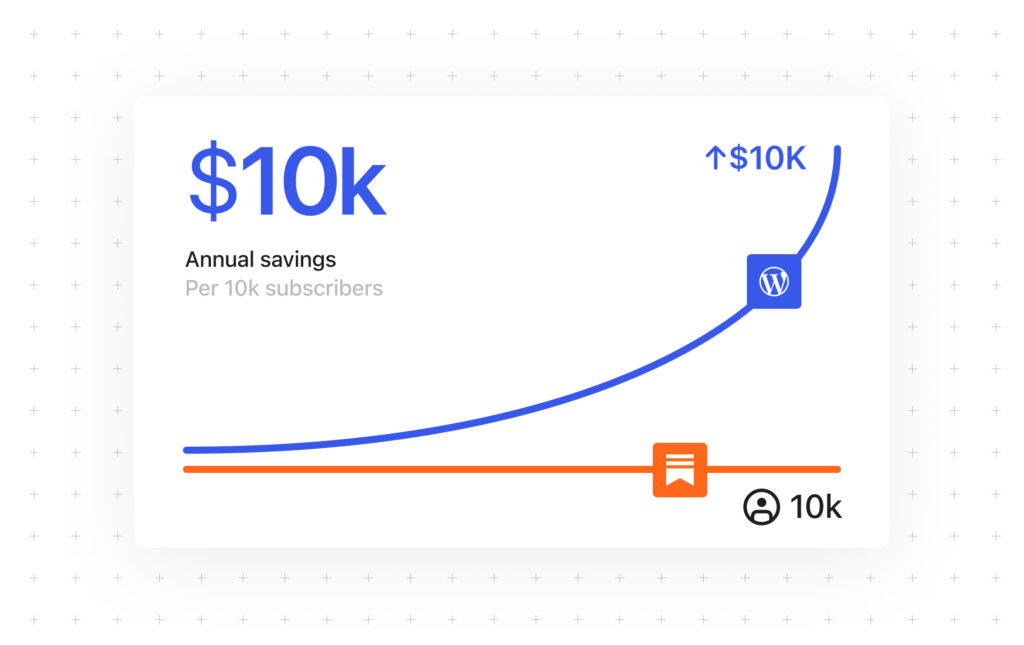
With the WordPress.com Commerce plan, we don’t charge a fee for each transaction. That means if you have 100 subscribers paying $10 per month, you’d save $660 per year

Plus, with WordPress.com plans, you also get reliable and managed website hosting, built-in support, and essential audience-building tools—all for one predictable price.

A pricing table showing number of subscribers and prices for WordPress.com and Substack

If 1,000 subscribers pay $10 per month each for your newsletter, Substack would charge $1,000 per month in transaction fees, based on their current fee structures. 

By hosting your newsletter on WordPress.com, you’d save $995 per month.

Your subscribers are paying for your content, right? Why shouldn’t you get that money?

Don’t fit in; stand out

Substack’s design options are limited, so creating a distinct brand identity can be challenging.

WordPress.com gives you more ways to customize your newsletter site with:

  • Dozens of professionally designed themes specifically optimized for newsletters.
  • Complete customization of colors, fonts, and layouts.
  • The ability to create a distinctive visual identity that reinforces your brand.
  • Custom landing pages that convert visitors to subscribers.
example landing page designs on WordPress.com featuring email newsletter opt-ins

Break through the newsletter ceiling

What if you’re ready to expand beyond newsletters? WordPress.com enables you to:

  • Own your piece of the web: Show up like an established business with a full-featured website.
  • Sell products and services: Add an ecommerce store to your site to sell merchandise, digital products, or services.
  • Build a loyal following: Create membership communities with forums and exclusive content.
  • Target your audience: Develop custom landing pages for different audience segments.
  • Expand what your site can do: Integrate with other tools and services through our plugin ecosystem.

Truly own your content and data

Substack gives you access to your content and subscribers, but you still rely on a closed platform with its own policies and limitations that can change at any time. 

WordPress.com gives you full control over your site, your data, and how you grow your business. If something were to change with our service, you could simply move to another WordPress hosting provider. Twenty years of commitment to content ownership and the open web ensures you’re not locked into proprietary systems.

We allow you to export your content and subscriber data anytime, control your brand, content, and relationships with your audience, and build on WordPress, the open-source platform that powers over 43% of the web.

Ready to make the move?

Whether you’re looking for more design flexibility, vastly lower fees, or true content ownership, WordPress.com provides a robust alternative to Substack. Join the thousands of creators who have chosen WordPress.com as their newsletter platform.

 [#item_full_content]

Ready for a Newsletter That’s Yours? Switch from Substack to WordPress.com Read Post »

wordpress ai website builder kfCAFl
WordPress News

Just Say the Word—Try Our New AI Website Builder for Free

Imagine this: You have an idea—maybe it’s a side hustle, a passion project, or a bold new business. Instead of wrestling with site layouts and design choices, you just say the word…and your website appears.

Creating a website should be simple. And now it’s as simple as having a conversation.

That’s the magic of our new AI website builder. It takes your input and instantly creates a fully designed, content-ready WordPress website, complete with text, layouts, and images, for you. Just you and your vision, with AI handling the rest.

Who is it for?

Our AI website builder is ideal for anyone who wants to launch a great-looking website quickly and easily, including:

  • Entrepreneurs and small business owners who need a professional online presence without building it all from scratch.
  • Freelancers and creators who want a portfolio that looks great with little effort.
  • Bloggers and side hustlers who want to quickly share their ideas online.
  • Developers who want to spin up ideas quickly for clients without starting from zero.

While it isn’t quite ready to create ecommerce sites or sites that require complex integrations (but stay tuned!), the builder will create beautiful, functional websites in minutes.

How it works

Rather than piecing everything together yourself, like picking a theme, adjusting colors, adding text, and finding images, the builder streamlines the process for you:

  1. Head to this page and tell us about your website idea.
  2. Log into your existing WordPress.com account or sign up for free.
  3. Watch AI build your site.
  4. Make changes by manually editing the page or by asking for updates in the chat box.
  5. Ready to share your site with others? A WordPress.com hosting plan gives your AI-built site a secure, reliable home online with a free domain for the first year. Then you can go live when the timing is right, or click the Launch button in the top-right corner to launch immediately.

Use the AI website builder like a pro

Unlike other AI experiences that generate basic, one-size-fits-all templates, our AI website builder does things differently. Here are a few key tips to keep in mind when you use it:

  1. Be as specific as possible in your first prompt: The more information you supply to the builder, the better. Provide your desired site name and a short description of the site (Is it a portfolio site, blog, or business website? What kind of content will you publish on the site?). Remember that you’ll be able to tweak colors, fonts, layouts, and images later, so don’t stress about this step too much!
  2. Create a new site to use the builder: This feature is currently only available for brand-new WordPress.com websites.
  3. Get 30 free prompts: Want a new page? What about a contact form? How about a new picture for your homepage? Take advantage of your 30 free prompts (or purchase a hosting plan for your site to get unlimited prompts) to create a site that’s uniquely yours. 
  4. Return anytime: Want to take a break? Once you have a hosting plan, you can return to using the AI website builder by going to Appearance → Editor in your WordPress.com site dashboard whenever inspiration strikes.
  5. It’s still WordPress: If you want to take over, you can edit and add pages manually, change the site design, and use development tools on our Business plan and above
  6. Learn more: Dive deeper into using the builder by checking out our support documentation

Get started today

You need a website, not a new skill set. Instead of figuring out how to build a website from scratch, you can have a full-blown WordPress site that looks great and works seamlessly without the manual effort. 

Get online fast, and start running your business, sharing your ideas, or having a place to call your own on the web.

Our AI website builder is live (and free) today—what will you build with it?

 [#item_full_content]

Just Say the Word—Try Our New AI Website Builder for Free Read Post »

what is a wordpress sitemap F6u7Ga
WordPress News

What is a WordPress Sitemap and How Do You Add One to Your Site?

A WordPress sitemap is a file that lists all of the posts, pages, and other content that make up a site. 

Although sitemaps are usually created by WordPress by default, this isn’t always true. In this guide, we cover how to check if your site has one and what to do if it doesn’t. We’ll also explore the differences between XML and HTML sitemaps.

What exactly is a sitemap?

When people talk about sitemaps, they’re usually referring to an XML sitemap. While there are other types, let’s start with XML.

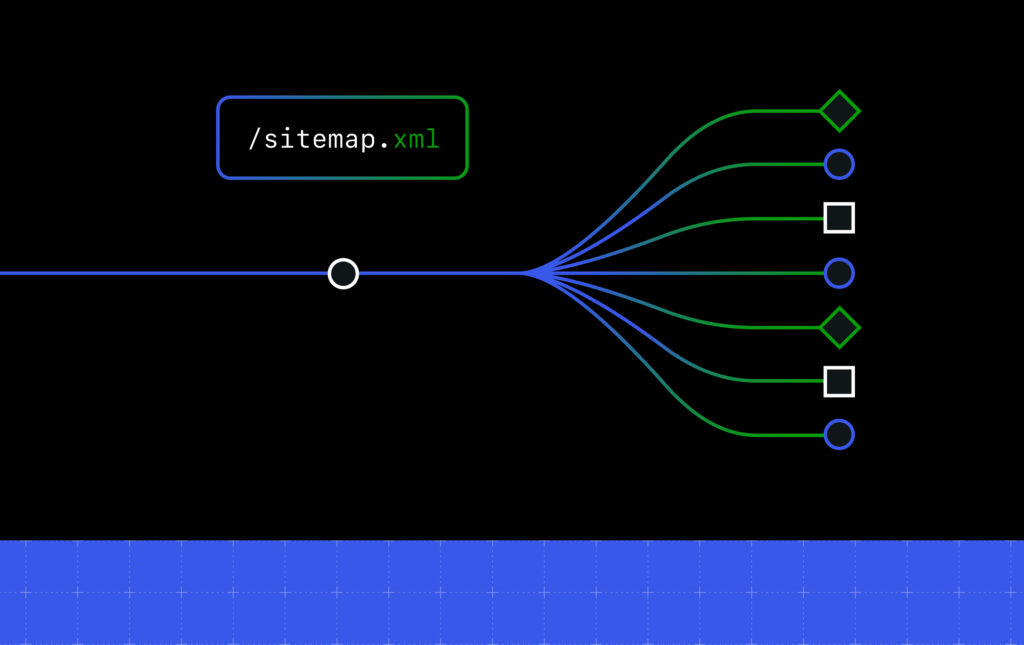
An XML sitemap gives search engines a comprehensive overview of your site’s structure. It typically includes the full URL of each page and notes the last time each one was updated.

A screenshot of a green and white XML sitemap

XML sitemaps exist primarily to help search engines find all the pages and other content on your site. This allows the search engine to add your content to its index and, when relevant, show it to users in search results. 

Although search engines can index your pages without a sitemap, having one helps them do so more efficiently.

Due to this, having a WordPress XML sitemap is highly recommended.

Other types of sitemaps

While XML sitemaps are the most common types of sitemaps, they aren’t the only kind of sitemap you might want to use on your site. Depending on your audience and the content, adding other types of sitemaps can improve navigation and visibility.

HTML sitemaps

You now know that search engines use XML sitemaps, but human visitors can also use sitemaps called “HTML sitemaps.”

HTML sitemaps are often used when a site has many pages and adding links to all of those pages in the site’s navigation menu would be overwhelming. 

Unlike XML sitemaps, HTML sitemaps have no strict format; you can design them as freely as regular pages.

If you’re hosting your site with WordPress.com, you can use the sitemap shortcode to quickly create an HTML sitemap. The shortcode generates an ordered list of all the pages on your site, highlighting parent/child relationships based on your page settings.

To create an HTML sitemap on your WordPress.com-hosted site:

  1. Visit your site dashboard and create a new page (Pages → Add Page) or edit an existing one (Pages → All Pages → Edit).
  2. Add a Shortcode block to the page by clicking the + symbol and typing shortcode.
An orange arrow highlighting the WordPress + button and the word 'shortcode' written into the block finder
  1. Type sitemap in the Shortcode block field surrounded by brackets.
an orange arrow pointing to the word '<ul class="jetpack-sitemap-shortcode"><li class="pagenav"><b><a href="/">WordPress.com News</a></b><ul><li class="page_item page-item-2508"><a href="https://wordpress.com/blog/comment-guidelines/">Comment Guidelines for the WordPress.com News Blog</a></li>
</ul></li></ul>' in the Shortcode block
  1. Preview or publish the page to view the shortcode output.
A screenshot of a dummy About page and an HTML sitemap displayed at the bottom

If your site isn’t hosted by WordPress.com, you can add a similar HTML sitemap by using a plugin like Simple Sitemap

Other types of XML sitemaps

There are also different types of XML sitemaps.

While the standard WordPress XML sitemap lists a site’s posts and pages, there are also XML sitemaps for listing a site’s images and videos. These sitemaps can help search engines add your images to places like Google Images. 

There’s also the news sitemap, which is required for websites listed in Google News. This type of sitemap helps Google News quickly add fresh news content to its index. 

WordPress.com-hosted sites automatically generate a news sitemap; however, inclusion in Google News requires approval

Understanding your WordPress sitemap

Since version 5.5 (released in 2020), WordPress core has the functionality to automatically generate XML sitemaps. The WordPress sitemap is updated each time you publish or edit content. 

Viewing your WordPress XML sitemap 

To view your WordPress XML sitemap, add sitemap.xml to the end of your site’s domain name in the URL field of a browser window.

If you see an error message stating that the page cannot be found, your site probably doesn’t have a sitemap. 

If your site does have a sitemap, you’ll see something similar to the one below. The exact format will depend on how the sitemap was generated.

A screenshot of the WordPress.com blog Sitemap

You can view the sitemap’s contents by clicking on any URL.

The WordPress.com sitemap showing all blog URLs

If you can’t see a sitemap for your WordPress.com site, then you can follow these steps to check the settings that could be causing the issue:

  1. Visit your site’s dashboard.
  2. Navigate to Tools → Marketing.
  3. Click the Traffic tab.
  4. Scroll down to the Sitemaps section. 

If sitemaps are enabled, you should see them listed.

An orange arrow pointing to the Sitemaps generated under Tools > Marketing on WordPress.com

If you see “Your site is not currently accessible to search engines,” click the “privacy settings” link to fix it.

A message under the Sitemaps section on the Tools > Marketing page on WordPress.com that says 'Your site is not currently accessible to search engines. You must set your privacy settings to 'public.'

From the Privacy Settings page, uncheck the “Discourage search engines from indexing this site” box, then click the Save button.

The site visibility section on the WordPress.com sites dashboard with an orange arrow pointing to discourage search engines

If you return to the Traffic tab (Your site dashboard → Tools → Marketing), you should now see your sitemap URL(s).

If WordPress.com isn’t your web host, then the process for enabling a WordPress sitemap is very similar:

  1. Visit your site’s dashboard.
  2. Navigate to Settings → Reading.
  3. Uncheck the “Search engine visibility Discourage search engines from indexing this site” box.
  4. Click the Save Changes button.
Orange arrows pointing to the checkbox that says 'discourage search engines from indexing this site' on WordPress
  1. Enter [your site URL]/sitemap.xml in your browser address field to check the sitemap status. 

If you still can’t see a sitemap, a third-party plugin might be managing your sitemap instead. You can access your site dashboard and click Plugins from the sidebar menu to check this.

The plugins page shows any installed (activated or deactivated) plugins on your site. Many plugins have added sitemap functionality, but some popular ones are Jetpack, Yoast SEO, Rank Math SEO, and XML Sitemap Generator for Google

If a plugin with sitemap functionality is active on your site, check its settings to see if it has disabled the sitemap.

For example, you can access the Jetpack plugin’s sitemap settings by navigating to Jetpack → Settings and clicking the Traffic tab.

You can then toggle the Generate XML sitemaps setting.

An orange arrow pointing to the Jetpack sitemap toggle on WordPress

Submitting your XML sitemap to search engines

As the purpose of a WordPress XML sitemap is to help search engines find your pages, you might wonder if you need to do anything to let the search engines know about your sitemap. 

Thankfully, you typically don’t have to worry about this. Search engines like Google and Bing regularly crawl the web, following links from one site to another. If your site is publicly accessible and linked to from other places, search engines will likely discover your sitemap automatically. Most websites include a link to their sitemap in the site’s robots.txt file, which search engines check by default. This usually helps them to find and use your sitemap without any manual submission.

However, if you’d like to speed up the process, you can manually submit your sitemap to Google and Bing to ensure they can crawl your site.

Submit your XML sitemap to Google

You can submit your WordPress XML sitemap to Google through Google Search Console.

Google Search Console is free to use, but you’ll need a Google account to use it. You’ll have to connect your site to Google Search Console—once you have, you can add your WordPress sitemap.

To do so, click Sitemaps from the Google Search Console’s sidebar menu.

An orange arrow pointing to the Sitemaps menu item on Google Search Console

You can then enter the sitemap name, which should be sitemap.xml (note that if a third-party plugin generated your sitemap, then it might be named differently), and click the Submit button.

An orange arrow pointing to the Add a new sitemap area on Google Search Console

The sitemap will then appear in the “Submitted sitemaps” panel.

Submit your XML sitemap to Bing

You can also submit your XML sitemap to Bing through Bing Webmaster Tools.

You should be able to log into Bing Webmaster Tools using your Google account and verify your site using the data from Google Search Console. Once done, you can add your sitemap by clicking on Sitemaps on the sidebar menu.

An orange arrow pointing to the Sitemaps menu item on Bing Webmaster Tools

The data import from Google Search Console should have added your sitemap, but if not, click Submit sitemap in the top right corner.

Then, enter your sitemap URL, like [your site URL]/sitemap.xml, and click Submit to add your sitemap to the list.

How to check if your sitemap is working properly

Once you’ve submitted your sitemap, you can verify that it’s working as expected. A broken or incomplete sitemap can prevent search engines from indexing your content correctly.

  1. Use Google Search Console: Once you’ve submitted your sitemap through Google Search Console, you can view its status in the “Sitemaps” section. It will show when the sitemap was last read, how many URLs were indexed, and if there are any crawl or parsing errors.
  2. Check Bing Webmaster Tools: Bing provides similar feedback in its “Sitemaps” report—you can see any errors or warnings here.
  3. Use other third-party validators: If you want to double-check the technical structure of your sitemap, you can use free online tools like the Sitemap Test from SEO Site Checkup

Help search engines—and your visitors—find your WordPress site

A WordPress XML sitemap isn’t mandatory, but it gives your site important benefits that ensure your content gets in front of the right people.

Once your WordPress site has a sitemap, search engines like Google and Bing will find it easier to crawl your site and add its content to their indexes. And with more of your content available in the search engine indexes, more search engine users will be able to find your site.

While WordPress creates XML sitemaps by default, it is highly recommended that you follow the steps in this guide to see if your site has one. If it doesn’t, you can check the relevant settings outlined above to fix any issues.

WordPress.com makes ensuring that your site content is indexable by search engines easy because we automatically generate an XML sitemap for you. Host your site with WordPress.com and get hosting, performance, and security managed for you all in one place.

 [#item_full_content]

What is a WordPress Sitemap and How Do You Add One to Your Site? Read Post »

WordPress News

WordPress 6.8 Release Candidate 3

The third release candidate (“RC3”) for WordPress 6.8 is ready for download and testing!

This version of the WordPress software is under development.  Please do not install, run, or test this version of WordPress on production or mission-critical websites.  Instead, it’s recommended that you evaluate RC3 on a test server and site.

Reaching this phase of the release cycle is an important milestone.  While release candidates are considered ready for release, testing remains crucial to ensure that everything in WordPress 6.8 is the best it can be.

You can test WordPress 6.8 RC3 in four ways:

PluginInstall and activate the WordPress Beta Tester plugin on a WordPress install.  (Select the “Bleeding edge” channel and “Beta/RC Only” stream).
Direct DownloadDownload the RC3 version (zip) and install it on a WordPress website.
Command LineUse the following WP-CLI command: wp core update --version=6.8-RC3
WordPress PlaygroundUse the 6.8 RC3 WordPress Playground instance (available within 35 minutes after the release is ready) to test the software directly in your browser without the need for a separate site or setup.

The current target for the WordPress 6.8 release is April 15, 2025. Get an overview of the 6.8 release cycle, and check the Make WordPress Core blog for 6.8-related posts leading up to next week’s release for further details.

What’s in WordPress 6.8 RC3?

Get a recap of WordPress 6.8’s highlighted features in the Beta 1 announcement. For more technical information related to issues addressed since RC2, you can browse the following links:

How you can contribute

WordPress is open source software made possible by a passionate community that collaborates and contributes to its development. The resources below outline various ways you can help the world’s most popular open source web platform, regardless of your technical expertise.

Get involved in testing

Testing for issues is critical to ensuring WordPress is performant and stable. It’s also a meaningful way for anyone to contribute. This detailed guide will walk you through testing features in WordPress 6.8.  For those new to testing, follow this general testing guide for more details on getting set up.

If you encounter an issue, please report it to the Alpha/Beta area of the support forums or directly to WordPress Trac if you are comfortable writing a reproducible bug report. You can also check your issue against a list of known bugs.

Curious about testing releases in general?  Follow along with the testing initiatives in Make Core and join the #core-test channel on Making WordPress Slack.

Search for vulnerabilities

From now until the final release of WordPress 6.8 (scheduled for April 15, 2025), the monetary reward for reporting new, unreleased security vulnerabilities is doubled.  Please follow responsible disclosure practices as detailed in the project’s security practices and policies outlined on the HackerOne page and in the security white paper.

Update your theme or plugin

For plugin and theme authors, your products play an integral role in extending the functionality and value of WordPress for all users.  For more details on developer-related changes in 6.8, please review the WordPress 6.8 Field Guide.

Thanks for continuing to test your themes and plugins with the WordPress 6.8 beta releases.  With RC3, you’ll want to conclude your testing and update the “Tested up to” version in your plugin’s readme file to 6.8.

If you find compatibility issues, please post detailed information to the support forum.

Help translate WordPress

Do you speak a language other than English?  ¿Español?  Français?  Русский?  日本? हिन्दी? मराठी? বাংলা?  You can help translate WordPress into more than 100 languages.

An RC3 haiku

The launch draws closer,
Six-eight sings through RC3,
Almost time to shine.

Thank you to the following contributors for collaborating on this post: @audrasjb, @mamaduka, @krupajnanda, @benjamin_zekavica, @narenin, @joedolson, @courane01, @joemcgill, @marybaum, @kmgalanakis, @umeshsinghin, @wildworks, @mkrndmane.

 [#item_full_content]

WordPress 6.8 Release Candidate 3 Read Post »

WordPress News

WordPress 6.8 Release Candidate 2

The second Release Candidate (“RC2”) for WordPress 6.8 is ready for download and testing!

This version of the WordPress software is under development. Please do not install, run, or test this version of WordPress on production or mission-critical websites. Instead, it’s recommended that you evaluate RC2 on a test server and site.

Reaching this phase of the release cycle is an important milestone. While release candidates are considered ready for release, testing remains crucial to ensure that everything in WordPress 6.8 is the best it can be.

You can test WordPress 6.8 RC2 in four ways:

PluginInstall and activate the WordPress Beta Tester plugin on a WordPress install. (Select the “Bleeding edge” channel and “Beta/RC Only” stream).
Direct DownloadDownload the RC2 version (zip) and install it on a WordPress website.
Command LineUse the following WP-CLI command: wp core update –version=6.8-RC2
WordPress PlaygroundUse the 6.8 RC2 WordPress Playground instance (available within 35 minutes after the release is ready) to test the software directly in your browser without the need for a separate site or setup.

The current target for the WordPress 6.8 release is April 15, 2025.  Get an overview of the 6.8 release cycle, and check the Make WordPress Core blog for 6.8-related posts in the coming weeks for further details.

What’s in WordPress 6.8 RC2?

Get a recap of WordPress 6.8’s highlighted features in the Beta 1 announcement. For more technical information related to issues addressed since RC1, you can browse the following links:

Want to look deeper into the details and technical notes for this release? These recent posts cover some of the latest updates:

How you can contribute

WordPress is open source software made possible by a passionate community of people collaborating on and contributing to its development. The resources below outline various ways you can help the world’s most popular open source web platform, regardless of your technical expertise.

Get involved in testing

Testing for issues is critical to ensuring WordPress is performant and stable.  It’s also a meaningful way for anyone to contribute.  This detailed guide will walk you through testing features in WordPress 6.8.  For those new to testing, follow this general testing guide for more details on getting set up.

If you encounter an issue, please report it to the Alpha/Beta area of the support forums or directly to WordPress Trac if you are comfortable writing a reproducible bug report.  You can also check your issue against a list of known bugs.

Curious about testing releases in general?  Follow along with the testing initiatives in Make Core and join the #core-test channel on Making WordPress Slack.

Search for vulnerabilities

From now until the final release of WordPress 6.8 (scheduled for April 15, 2025), the monetary reward for reporting new, unreleased security vulnerabilities is doubled. Please follow responsible disclosure practices as detailed in the project’s security practices and policies outlined on the HackerOne page and in the security white paper.

Update your theme or plugin

For plugin and theme authors, your products play an integral role in extending the functionality and value of WordPress for all users.

Thanks for continuing to test your themes and plugins with the WordPress 6.8 beta releases. With RC2, you’ll want to conclude your testing and update the “Tested up to” version in your plugin’s readme file to 6.8.

If you find compatibility issues, please post detailed information to the support forum.

Help translate WordPress

Do you speak a language other than English? ¿Español? Français? Русский? 日本語? हिन्दी? বাংলা? मराठी? ಕನ್ನಡ?  You can help translate WordPress into more than 100 languages. This release milestone (RC2) also marks the hard string freeze point of the 6.8 release cycle.

An RC2 haiku

Testing, 1, 2, 3
It’s almost April fifteenth
Squashing all the bugs

Thank you to the following contributors for collaborating on this post: @michelleames, @tacoverdo, @jopdop30, @vgnavada.

 [#item_full_content]

WordPress 6.8 Release Candidate 2 Read Post »

Scroll to Top