The WordPress Foundation is pleased to announce the return of the Kim Parsell Memorial Scholarship for WordCamp US 2025. Applications are being accepted until July 25, 2025.
Remembering Kim Parsell
Kim Parsell was a dedicated contributor and a beloved member of the WordPress community. Her passion for open source and her welcoming spirit inspired many, both online and in person. Each year at WordCamp US, the WordPress Foundation celebrates Kim’s legacy by supporting contributors who share her commitment and enthusiasm. The Kim Parsell Memorial Scholarship aims to make it easier for deserving community members to attend WordCamp US, reflecting Kim’s belief in making WordPress accessible and inclusive for all.
If you’re unfamiliar with Kim’s story or her invaluable role in the community, we encourage you to read these heartfelt tributes collected from friends and colleagues.
Scholarship Eligibility
This year, a single scholarship will be awarded. To qualify, applicants must:
Identify as a woman
Be actively involved as a contributor to WordPress
Have never attended WordCamp US before
Demonstrate a need for financial support to attend the event
If you meet these qualifications, we invite you to apply before the July 25 deadline. All applicants will be notified of the decision by August 7, 2025.
Picture this: You’re working on a client’s website, fine-tuning a new theme you’ve been developing for weeks in WordPress Studio. The design is perfect in your local environment, and you’re ready to push it live using Studio’s sync feature.
But there’s a catch. You only want to deploy the theme. You don’t want to overwrite the plugins already running smoothly in production, and you definitely don’t want your local test content affecting the live database.
If that sounds familiar, you’re not alone. Until now, Studio’s sync feature was all or nothing; you could easily push or pull entire sites between your local environment and WordPress.com or Pressable, but there was no way to sync just part of a site, like a single theme.
That changes today with the release of Selective Sync in WordPress Studio 1.5.5.
Adding granular control
Selective Sync gives you precise control over what gets transferred between WordPress Studio and any connected production or staging sites. You can now choose exactly what to sync, whether it’s a single theme, a specific plugin, only the database, or the entire wp-content folder.
The reality of WordPress development is that production sites are constantly changing. While you’re working on new features locally, your live site continues to serve visitors, process orders, and collect user data. A full sync in either direction could result in lost changes or disruptions for active users.
Here are a few scenarios where Selective Sync really shines:
Plugin development: When building a new plugin feature, you often work with test data that shouldn’t make its way into production. Selective Sync lets you push only the plugin files, keeping your local database separate. Your live site’s data stays intact, and your new feature goes live without disruption.
Theme updates: Theme developers face similar challenges. You might spend days fine-tuning layouts and testing block patterns with sample content. When it’s time to deploy, you want to push only the theme files, not placeholder posts or demo images. Selective Sync makes that easy.
Privacy and scale: If you’re working with a WooCommerce store that has hundreds of products and thousands of customers, cloning the full site locally can be risky or unnecessary. Selective Sync allows you to pull down only the code you need to work on, such as the theme or a specific plugin, without syncing sensitive customer data to your local environment.
Focused environments: Some developers prefer to separate concerns by using different local Studio sites for different types of work. You might maintain one environment for plugin development and another for theme design. With Selective Sync, each can connect to the same production site and push changes independently, without affecting unrelated parts of the project.
Since full-site sync launched in January 2025, developers, designers, and site builders have asked for more flexibility. Selective Sync was built in direct response, making it easier to adapt Studio to the needs of real-world projects.
How Selective Sync works
If you’re new to WordPress Studio, this is a great time to explore what the tool offers beyond its new syncing features. Studio is free, open source, and built to make building WordPress plugins, themes, and full sites more efficient and enjoyable.
Already using Studio? Selective Sync is available now. Just update to the latest version when prompted in the app, then follow the steps below to get started.
The first step is to connect a local Studio site to an existing production or staging site on WordPress.com or Pressable. You can also create a new site on WordPress.com from the Studio interface:
Select the site you wish to connect from the Studio sidebar.
Click the “Connect site” button to see available sites.
Select the site you want to connect to and confirm by clicking the Connect button.
(Optional) Create a new site by clicking “Create a new WordPress.com site.”
Pull content into Studio
Once your live site is connected in Studio, you can either pull content from the connected site into Studio or push content from your local environment back to the connected site.
Let’s start with pulling content:
Open the Sync tab for the site you want to synchronize (if you’re not already there).
Locate the connected WordPress.com or Pressable site you want to pull content from.
Click Pull to open the sync modal.
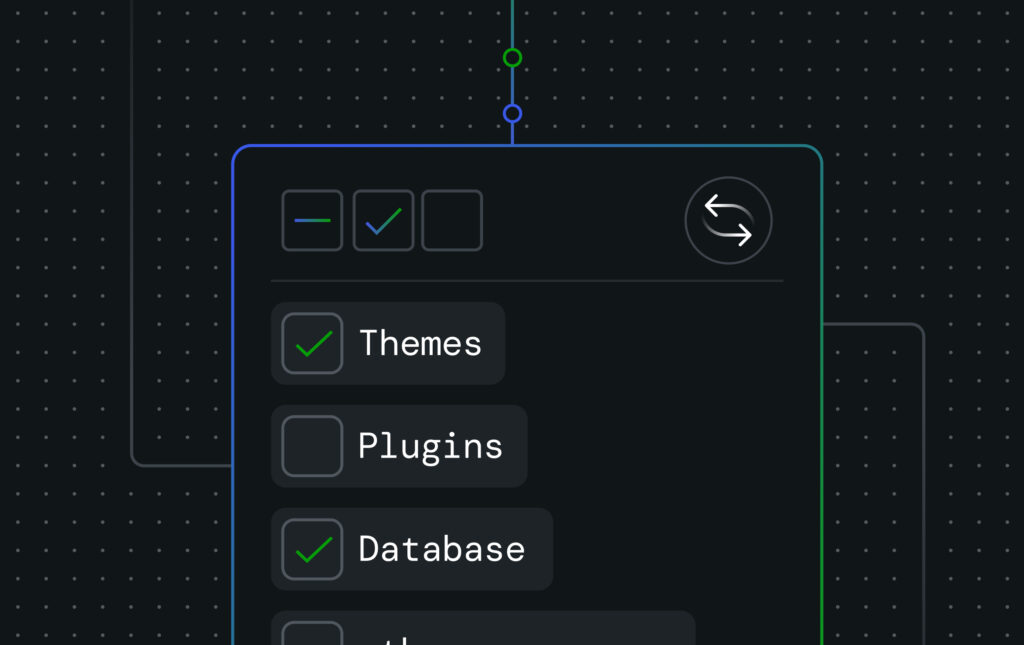
Choose to sync “All files and folders” or “Specific files and folders,” then use the checkboxes to select what you want to include.
Decide whether to include the Database in the sync.
Click Pull to confirm and begin syncing.
The process may take some time, as a full backup of your live site will be created. Once complete, you’ll be ready to start working locally in Studio.
Push content to a live site
Pushing content from Studio to a connected site follows a similar process to pulling, but with more control. You can choose individual plugins, themes, and other files to sync.
Open the Sync tab for the site you want to synchronize (if you’re not already there).
Locate the connected WordPress.com or Pressable site you want to pull content from.
Click Push to open the sync modal.
Choose to sync “All files and folders” or “Specific files and folders,” then use the checkboxes to select what you want to include. You can expand the plugins, themes, and uploads folders to select individual items.
Decide whether to include the Database in the sync.
Click Push to confirm and begin syncing.
As with pulling content, the process may take some time. A full backup of the connected site will be created before your local changes are applied. Once the sync is complete, you’ll receive an email confirmation with a summary of what was transferred.
Pro tips for using Selective Sync
Selective Sync is built to streamline development, but there are a few key details to understand before getting started.
When pushing from Studio to a production or staging site, development-only files such as .git directories and node_modules folders are automatically excluded. These files remain local, keeping your live site clean and efficient.
As noted earlier, when pulling content into Studio, you can sync entire folders, such as all themes or all plugins, rather than selecting individual items. In contrast, when pushing to a live site, you can choose specific themes and plugins. We found this setup reflects the needs of most workflows, but we’re always listening to feedback for future enhancements.
While Selective Sync covers many common scenarios, some projects may still require a more advanced deployment workflow. For those cases, GitHub Deployments on WordPress.com offers more control and works well alongside Studio for complex setups.
What’s next for Studio?
Selective Sync is part of a broader effort to support the variety of workflows developers use every day. That work continues, especially within WordPress Playground, the foundation that powers Studio.
Upcoming enhancements include:
XDebug support: One of the most requested additions, this will bring professional debugging capabilities to WordPress Studio. Follow along on GitHub.
Performance improvements: Upcoming enhancements in WordPress Playground will make Studio even faster and more responsive.
Community feedback drives these priorities. The WordPress Studio GitHub repository is the central place to suggest features, report bugs, and contribute directly to the project. Every issue, comment, and pull request helps shape the future of Studio.
If this is your first time exploring WordPress Studio, or if it has been a while since you last tried it, now is a great time to take another look. Alongside Selective Sync, dozens of improvements have rolled out this year, with more still to come.
The WordPress Foundation is proud to launch WordPress Credits, a contribution-focused internship program that brings university students into the heart of the WordPress open source project. While WordPress thrives on contributions from a global volunteer community, many students and newcomers face barriers to entry, such as a lack of structured guidance or real-world experience in open source projects. This new program is designed to bridge that gap, nurturing future contributors and ensuring WordPress remains innovative, inclusive, and sustainable for years to come.
The pilot program, developed in partnership with the University of Pisa, was announced on stage at WordCamp Europe 2025 by Matt Mullenweg and Mary Hubbard. Since then, it has attracted interest from students across various fields of study, including humanities, computer science, and communication. Companies in the WordPress ecosystem have also expressed support and interest in contributing to the project. In response to the growing interest from both community members and academic institutions, we are now inviting more universities to join the initiative.
Open to students from all fields of study, the program blends structured onboarding with a personalized contribution project. Activities are adapted to each student’s degree program and familiarity with WordPress, aiming to develop transferable skills, academic-related competencies, and active participation in the WordPress community. Internship durations may vary depending on the university or educational institution. Some may align with academic semesters (typically 3–4 months), while others, like the University of Pisa, allow students to sign up year-round with a requirement to complete a set number of contribution hours (e.g. 150 hours). Flexible arrangements can be discussed to meet the specific requirements of each institution.
Foundational Training includes:
An introduction to open source principles and the WordPress Foundation
Getting familiar with community tools (Slack, Make blogs, Learn platform, GitHub)
Setting up a personal WordPress site and publishing content
Each student will choose a contribution area and design their own personal project within that area. Examples of possible projects include:
Translating interfaces or documentation
Creating multilingual subtitles for educational videos
Contributing code or performing testing
Supporting product development or design
Writing or editing content
Assisting with community event organization
Developing training materials for Learn WordPress
Creating open source tools
And much more…
Interns are guided by an experienced mentor specific to their chosen area and supported by a dedicated WordPress Foundation contact person throughout the program. All student contributions, whether code, translations, documentation, or educational materials, will be publicly visible and integrated into official WordPress projects and resources, directly benefiting the wider community.
Interested universities and educational institutions interested in participating can reach out by filling the interest form.
We also invite companies in the WordPress ecosystem to support this initiative by sponsoring mentors who will guide and empower the next generation of contributors, or by providing tools and resources that help students succeed in their contribution journey.
If your company is interested in getting involved, please visit the Company Guide to learn more and fill out the form to join the program.
By welcoming students, mentors, sponsors, and volunteers into this initiative, we are building a stronger and more connected WordPress community. Each person who takes part, whether they guide a student, share their experiences, provide sponsorship, or simply help spread the word, helps ensure that open source remains vibrant and accessible for all. Together, we are not just supporting individual contributors; we are shaping the future of WordPress and open source itself.
A giant gas planet comparable in size to Saturn exists around a small red dwarf star. The discovery is beyond the scope of conventional astronomy theory, and is making experts reconsider conventional notions of planet formation.
The National Academy for AI Instruction will make artificial intelligence training accessible to educators across the country, according to leaked details.
The World Health Organization has added the variant, known formally as XFG, to its monitoring list. A dry, irritated throat is among its main symptoms.
President Donald Trump’s budget would kill off tax credits for wind and solar, raising costs for new clean energy projects and blowing up valuable investment in those already in the pipeline.
Keeping your WordPress site backed up is essential. Imagine how you’d feel if your website was gone one day and there was no way to get it back.
While there are many ways to back up your WordPress site, choosing the right one can be difficult. Each option has its own features and user experience.
This guide covers the important features to look for in a backup tool. It also looks at some of the best backup tools available and includes a quick walkthrough of how to back up a WordPress site.
What are WordPress backups?
A WordPress backup is a copy of your website’s files and database. The backup lets you restore the whole site if something goes wrong. There are two types of backups:
A full backup restores the entire site to the state it was in when the backup file was created.
An incremental backup only restores new or recently modified items, such as updated pages, new plugin settings, or altered media files.
While the WordPress editor autosaves your posts and pages, giving you a way to restore earlier versions of your content, this isn’t the same as backing up an entire WordPress site, including its files and database.
A database backup includes your site’s content, such as all posts and pages, the site settings, user information, and comments.
A file backup typically includes the themes, plugins, media uploads, and core WordPress files of your site.
If you want to restore the site’s content, without overwriting any changes you’ve made to the site’s files since the backup was created, you can make a partial backup.
For example, maybe you want to restore a deleted blog post, but you’ve changed your site’s theme since the post was deleted. Restoring just the database will restore the post (and other database contents) without affecting the site’s files.
Manual vs. automatic backups
Backups can be created manually or automatically, depending on the features of your backup tool.
Basic WordPress backup solutions often don’t back up your site in real time, necessitating a manual backup prior to changing your site. While a manual backup offers more control, the downsides include:
Not always knowing when to make a backup
Having to remember when you should make a backup
Role-based restrictions on who can make the backup
Automatic backups happen on a regular schedule, such as once per day, or as changes are made to your site. Due to the importance of having a recent backup, it’s a good idea to choose a solution that automatically creates backups.
Why WordPress backups are important
Reasons you might need to use a backup to restore your site include:
Hacking or malware: Although WordPress is a secure platform, a clean backup allows you to quickly recover your site if it gets hacked or infected.
Server crashes or hosting failures: If your host loses data or has a server error, a backup can help you get your site online again quickly.
Accidental data loss or deletion: We all make mistakes, and whether you’ve accidentally edited a blog post, deleted an image file, or changed a key setting, a recent backup lets you undo those changes.
Plugin or theme conflicts: Installing or updating a plugin or theme may introduce errors to your site or cause a conflict. A backup enables you to return your site to how it was before the issue arose.
WordPress software updates: New WordPress releases are thoroughly tested, but you might need to roll back to a previous version due to a conflict or introduction of a new feature you’re not ready for.
To mitigate against the above situations, backups must have been recently created, safely stored, and be easy to restore.
Some websites need more robust backup solutions than others. For example, if you have a site that rarely changes, making a manual backup on a daily or weekly cadence should suffice.
However, you’ll need a more feature-rich, automatic backup solution if you’re regularly making changes to your site, such as frequently publishing new blog posts, or you often receive comments or messages via your site’s forms.
Those selling items or subscriptions through their WordPress site will also need robust backup solutions to prevent the loss of orders and other key data.
Additionally, if you have multiple users working on your site, there’s a higher chance of mistakes being made. This means you’ll need to create backups more frequently than once daily.
What to look for in a WordPress backup tool
Your main options as a WordPress site owner are using the backup service provided by your web host or a plugin.
The quality of the available plugins and options provided by hosts vary considerably. Some solutions are very robust, feature-rich, and comprehensive, while others are basic and challenging to use.
Some key points to consider when choosing a way to back up your WordPress site include:
Automation: Can backups be automatically created on a set schedule, such as daily, or in real-time whenever a change is made?
Frequency: How often are automatic backups created, and can backups be created manually on demand?
Breadth: Is your entire site backed up, including the files, database, and email provision?
Restoration options: Can you restore part of the backup, such as the database or a specific post, or do you have to restore and overwrite your entire site each time?
E-commerce-friendly: Is the solution compatible with online stores and does it give you the option of keeping order details while restoring other parts of your store?
Storage: Are the backups stored separately from your website, such as on another server or in your cloud storage? Can you download the backups to your computer? Are multiple copies of the backup files created for redundancy, and how long are they available?
Security features: Are the backups encrypted and stored securely?
Ease of use: How easy is it to access and restore the backups? Is the interface user-friendly?.
Use your host’s backup solution
Most web hosts provide a backup solution. However, the functionality of the system varies significantly between hosts. Some might have a powerful in-house tool, while others rely on the cPanel backup functionality.
If your host provides a backup solution, try it out and see how easy it is to restore your site. Check its features and how useful they’d be if there’s a problem. If your host’s backup solution isn’t good enough, you should be able to switch to a plugin.
Use a WordPress backup plugin
There are many backup plugins for WordPress. The best options automatically back up your site on a custom schedule or in real time.
Make sure you closely check out the features and test any plugin you install to see if it works as expected, especially the free options.
Top WordPress backup plugins
Here’s a quick overview of some popular free and paid plugins you can use to back up your WordPress site:
Jetpack VaultPress Backup has good support for WooCommerce, so you can safely restore your site to any past state while keeping all order and product data.
The free version covers all the essentials, including automatically creating backups, saving them to cloud storage, and the ability to easily restore them. However, incremental backups, automatic backup creation before installing WordPress updates, and database encryption are paid features.
Using UpdraftPlus is straightforward, but like most other WordPress backup plugins, it lacks the useful Activity Log feature of Jetpack VaultPress Backup.
The free version lets you choose exactly what parts of your site to back up. Backups can be automatically created as frequently as every hour. Saving backups to a selection of cloud storage services is another free feature.
However, restoring backups with the free version isn’t as user-friendly as UpdraftPlus and JetPack VaultPress Backup.
BlogVault WordPress Backup Plugin
The BlogVault WordPress Backup Plugin connects your site to the BlogVault backup service rather than integrating a backup tool into your WordPress dashboard.
Once set up, all backup and restore actions take place in your account area on the BlogVault website.
The free version allows you to create backups, but you can only restore them with the relatively expensive paid plans.
Which WordPress backup plugin should you choose?
Out of the above options, the free version of UpdraftPlus is an excellent choice. Frequent automatic backups are included, and you can restore them without upgrading to a paid plan.
If you’d like a more robust backup solution and don’t mind paying for it, the ease of use and Activity Log feature of Jetpack VaultPress Backup make it an appealing option.
Whichever one you choose, be sure to thoroughly test the backup and restore functionality now, rather than waiting until it’s needed.
Once you’ve signed up for either the Business or Commerce plan, Jetpack VaultPress Backup automatically starts backing up your site in real time. Manually creating a backup at any time is possible, too.
Backups are available for up to six months while you’re subscribed to an eligible plan. They’re also kept for 30 days after your subscription expires.
Let’s walk through how to use Jetpack VaultPress Backup with WordPress.com hosting.
Accessing your backups
You can view your backups from your WordPress dashboard.
Once logged in, go to Jetpack → VaultPress via the sidebar menu.
The last time a backup was created is shown on the Jetpack VaultPress Backup page.
Restoring a WordPress backup
You can restore a backup from your WordPress dashboard or download the file for safekeeping.
You can also view and restore the individual components of the backup, for example if you need to restore an image file that was accidentally deleted.
You can also use the staging site feature available on the Business and Commerce plans to handle more complicated restoration of a backup.
This is handy if, for instance, you created many blog posts after your last backup, and don’t want to lose those blog posts. You can restore the backup to the staging site, then restore the specific content to the live site.
Although the above is an advanced aspect of Jetpack VaultPress Backup, you never know when you might need it.
As you can see, backing up and restoring your WordPress site can be very straightforward, depending on the tool you choose.
WordPress site backup best practices
To get the most out of your WordPress site backups, consider the following:
Frequency: Set a frequency that covers the important changes to your site, such as form submissions, content publication, and customer orders. Even better, opt for real-time backups.
Storage: Make sure the backups are securely stored and not on the same server as your website.
Retention: Ensure enough backups are retained for long enough that you can recover a specific version of your site, rather than only being able to restore to when it was last backed up.
Test restoring backups: Test your backups occasionally to ensure they are easy to restore when needed.
If you follow the above advice, you’ll never have to lose sleep over whether or not your WordPress site is backed up sufficiently.
Is your WordPress site backed up?
You don’t want to wait until you need a backup to find out whether or not your site is backed up.
If your site is being backed up, make sure everything is functioning as expected and that you can successfully restore a backup. If you’re not backing up your site, now is the time to choose a solution.
If you’re thinking about building a website for the first time, you’re likely to run into a question: do you need web hosting or a website builder?
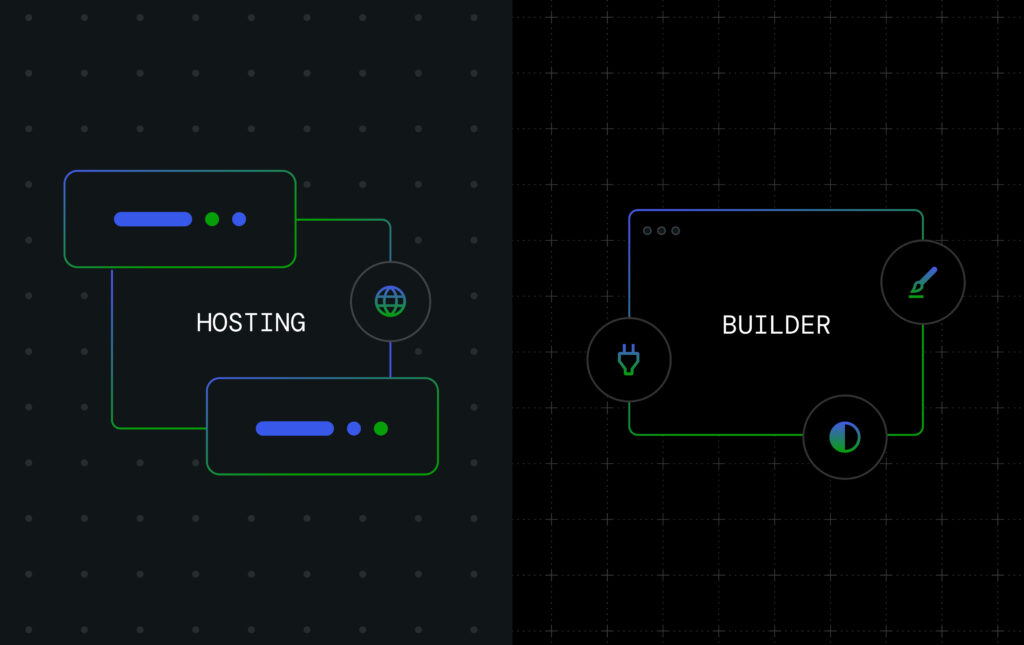
The quick answer: you don’t necessarily have to choose one or the other. Web hosting companies host your site’s files so they are accessible online, while website builders are software services for creating websites. For most new users, the best solution is to choose a hosting company and a website builder.
In this post, we’ll dive into what the terms website hosting and website builder mean in more detail, explain how they work together, and help you choose the best services and options for you based on your skills, budget, and long-term goals.
What is web hosting?
Web hosting is a service that stores your website’s files, such as code, images, and content, on a server. When someone types in your domain name, this server sends the files to their browser, allowing them to view your site.
How web hosting works
Think of web hosting like renting an empty apartment. This server is your space, and you can use it to store your site’s files, images, text, design elements, and more.
You also get full control over how you build your site. You can install a free tool like WordPress or write code using HTML, CSS, and JavaScript to create your website. You’re not locked into a single system.
Tip: Different hosting providers offer different types of hosting plans — shared, VPS, cloud, and dedicated. Learn more about each option and explore which one suits your site’s size, budget, and technical needs.
What is a website builder?
A website builder is an all-in-one platform for building, customizing, and hosting a website. You get a drag-and-drop editor, pre-designed themes, technical support, and built-in hosting in a single subscription.
How does a website builder work?
A website builder offers a more user-friendly interface for creating a website.
Log in to your platform of choice and pick a theme for your site. Then, use the visual editor to design each page with text, images, buttons, custom code, and other features.
Note: A website builder isn’t the same as a content management system (CMS). A CMS gives you a flexible backend to manage your website’s content, themes, and plugins, but you’re responsible for setup, hosting, updates, and security. In contrast, a website builder manages everything automatically. In short, a CMS offers more control and customization, while a website builder offers more convenience and ease of use.
Common website builders to explore
Here are three platforms to see how a website builder works:
Squarespace: Design your website with clean templates using built-in tools for blogging, ecommerce, and scheduling.
Wix: This website builder offers many templates and AI tools to build your site quickly. It’s suitable for small businesses, freelancers, and personal brands for designing websites without coding.
Now that we’ve discussed the basics of website hosting and builders, let’s discuss how they’re similar and where they differ.
Similarities between website hosting and builders
At first glance, web hosting and website builders seem totally different, but they share a lot of common ground. Before we discuss what sets them apart, let’s look at what both options help you do behind the scenes.
Store and manage all your website files
Your website is made up of many files like text, images, code, a database, and more. All this content has to be stored somewhere.
Website hosting stores these files on a server and gives you direct control over managing them. You can access folders, upload assets, and organize everything the way you want.
Website builders, on the other hand, store these files on their own server. You can’t access or organize them directly, but they’re stored safely and displayed to visitors when they land on your site.
Handle secure domain connections
Your domain name (like example.com) should be linked to the server where your website’s files are stored. You can do this through DNS settings.
With traditional hosting, you can connect your domain manually by updating DNS records through the registrar. Website builders simplify the process. They often guide you step-by-step or handle it automatically if you purchase the domain through them.
Either way, hosting services and builders ensure your website shows up when someone visits your domain.
Keep your site secure
Uptime, backups, and updates are critical to your website’s maintenance and security.
Whether you’re using a hosting provider or a website builder, the platform you choose is responsible for keeping your website running smoothly and securely.
Most hosting services offer tools like SSL certificates, regular backups, malware scanning, DDoS protection, and server firewalls. Website builders also offer similar protections, but you don’t need to configure anything manually.
Web hosting vs. website builder: how are they different
Both of these approaches have a similar end goal — getting your website online, but the way they work is quite different.
Let’s break down where web hosting and website builders go their separate ways, and what those differences mean for you.
Level of control
Quick answer: Web hosting lets you modify anything, like plugins, code, and more. Website builders limit changes and customizations to what the platform offers.
Web hosting gives you complete control over how your website works behind the scenes.
You can choose a hosting software like WordPress, set up your website, add plugins or themes, and customize your code. This setup works well for developers and teams looking to build custom features on their sites.
With web hosting, you can decide on different aspects like speed, security, and how much server power your site gets.
On the other hand, website builders give you a closed environment.
You can change the design and use the add-ons available on the platform, however, it limits the extent to which you can tweak your site. Basically, you can’t customize the underlying code of your site.
With this approach, it’s much easier to design a website. However, if you need a feature that the platform doesn’t offer, you can’t add it yourself.
Ease of use
Quick answer: Web hosting can require multiple steps to complete the setup. Website builders provide a quick workflow to get started.
With a hosting service, you need to manage multiple systems manually. You have to:
Set up your hosting account.
Install a CMS like WordPress.
Back up your site manually.
Manage files through FTP.
This approach requires more technical involvement at every step. It’s more suited for developers who can manage these tasks independently, but it can be frustrating for those who don’t have the necessary technical expertise.
That’s where website builders offer convenience to anyone who doesn’t know the technical side of web development.
A website builder gives you everything in one place:
Themes and templates.
Design tools.
Security.
Hosting.
It requires a shorter learning curve, and you don’t need to write code.
Speed to launch
Quick answer: It can take more time to launch a website if your web hosting doesn’t include a website builder or CMS. Choosing a hosting option with an included website builder make it easier to design and publish websites.
Launching your site takes many steps when you use a hosting service.
You have to pick a hosting platform, buy a domain, install software, and customize your site. It can take a few days to finish your design, especially if you’re figuring everything out as you go forward.
In contrast, website builders are made for fast results.
Most builders offer a user-friendly interface and guide you through the process of designing a site. Pick a template, add your copy and images, and publish when you’re ready. For one-pager sites, you can even go live the same day.
Cost structure
Quick answer: Web hosting alone can look cheap up front, but you pay extra as your website grows. Website builders roll everything into one bill: higher entry price, simpler bookkeeping.
Using a hosting service means you pay separately for different elements — themes, plugins, extra storage, and more. While basic hosting plans seem cheap at first, the total cost can add up once you factor in upgrades or outside help.
Website builders charge a bundled price inclusive of hosting, design tools, support, and security. Choose from tiered plans based on your requirements.
While builders look pricier upfront, they simplify your billing process. Plus, the cost of hosting plans can add up when you factor in upgrades in the long term.
can be tough because you might have to rebuild your site from scratch.
Make the right choice
Choosing web hosting is ideal when you:
Need complete control over your site’s code, plugins, and server settings to work with a custom tech stack.
Want to create a one-of-a-kind design or special features that off-the-shelf templates can’t deliver.
Expect to see significant traffic spikes or reach international audiences, and need the flexibility to adjust your site’s bandwidth.
Have in-house technical expertise to manage updates and troubleshoot issues.
Website builders are ideal when you:
Want to go live with your site quickly with a minimal setup (for side hustles, portfolios, or small businesses).
Prefer a simplified billing process with fewer moving parts and everything like hosting, analytics, and CMS in one package.
Have limited technical knowledge and no time to learn web development and maintenance tasks,
WordPress.com offers the best of both worlds
With WordPress.com, you don’t have to worry about choosing one or the other option.
WordPress.com uses the same powerful WordPress engine that powers 40% of all websites globally. This means you get the familiarity, flexibility, and plugin support of open-source WordPress, without too much manual effort.
Here’s what you can do with WordPress.com:
Easy design with block editor and themes
Use the block editor to design pages by simply dragging and dropping elements. Create custom block styles to build visual consistency across your site.
Plus, you can access hundreds of professionally designed themes for multiple industries and use cases. These themes automatically adapt to different screen sizes and don’t require any coding.
Thousands of plugins for added features
Pick tools from the WordPress plugin marketplace to improve your site and expand its functionality. You can add plugins to:
Improve SEO.
Create forms.
Connect to CRM.
Build a multilingual site.
Fully managed hosting and security
Unlike the self-hosting approach, you don’t need to worry about setting up servers, installing SSL certificates, or handling updates.
WordPress.com takes care of all the maintenance tasks, like site security, uptime monitoring, automatic backups, and performance optimization. You can focus entirely on your website design and business growth.
All WordPress.com websites also come with built-in security features like SSL certificates, domain privacy, spam protection, malware detection, DDoS protection and mitigation, and more.
Plus, you can experiment within your site in staging environments to test changes privately before going live.
Built to grow with your website
Whether you’re building a small website or have big dreams for the future, WordPress.com grows with your goals.
You don’t need to switch platforms even if you want to switch your approach from no-code to code. The platform has everything you need to customize and enhance your site.
Pick the best path forward
Rather than pitting website hosting against website builders, now you know you can have both together (and WordPress.com delivers both with one platform). You get a builder’s ease and a hosting provider’s flexibility without the hassle of migrating your site to a different platform.
Some Venetians are concerned about the impact the three-day event—which includes 80 private jets and more than 30 private water taxis—will have on their city.
There’s a simple reason why high-end EVs have failed to spark the imaginations of auto buyers. To remedy this, manufacturers need to revisit the days of the Model T.
As of July 2025, the WordPress Security Team will no longer provide security updates for WordPress versions 4.1 through 4.6.
These versions were first released nine or more years ago and over 99% of WordPress installations run a more recent version. The chances this will affect your site, or sites, is very small.
If you are unsure if you are running an up-to-date version of WordPress, please log in to your site’s dashboard. Out of date versions will display a notice that looks like this:
The version you are running is displayed in the bottom of the “At a Glance” section of the dashboard.
As a reminder, the only actively supported version of WordPress is the most recent one. Security updates are only backported to older branches as a courtesy.
Experts say that the suspect showed clear ties to forms of so-called charismatic Christianity that views abortion as a sacrifice to demons and seeks the end of secular democracy.
Social media platforms, collaborative online tools, and encrypted messaging are all helping to power a massive, decentralized resistance to the Trump administration.